Different types of inventory are used for different things around your farm, and possibly stored in different places. To keep your inventory organized and streamline your usage, you can select an Inventory Category on an item to define where it can be stored and how it might be used. This can help you display medicines and veterinary supplies when recording a livestock treatment, fertilizers and chemicals when treating your fields and plantings, or equipment parts when adding maintenance records. It can also help you keep items separated, like hazardous materials away from harvest storage, and chemicals away from animal feed.
To get started with this, navigate to Resources > Inventory. You can set inventory categories when adding a new item, or editing an existing item. The following categories are available; each item is assigned one.
|
|
In the example below we assign our Bovinex item to the Medicine category. That way it can be store in our warehouses that accept this type of item like a medicine cabinet or refrigerated storage. This also filters it to be shown when recording treatments, and removes it from usages like equipment services and animal feedings.

Selecting Categories in Bulk
You can also assign multiple items to the same category using Bulk Actions. Check the boxes next to select the items you would like to assign, and then choose Bulk Actions to Update Inventory Category. Any selected items will be associated with that category. We tagged al of our feed items as Animal Feed and Hay in our example below. Now they can be added to our feed storage warehouses and used in feedings, but not things like treatments or breeding records.

Category Effects on Storage and Usage
Now that the item has a category associated with it, you'll see the category come in to play in two ways.
- The category limits where the item can be stored based on warehouse filters. You can set up warehouse filters on the warehouse itself. Each warehouse can store multiple types of items, so you might keep things like medicine, veterinary supplies, and breeding supplies together in one warehouse. This limits the options for storage locations when adding inventory to this item; only warehouses that can store it's type will be shown, and/or warehouses that have no filtered options (and can thus store any type of item). It also limits what items can be selected when adding inventory directly to the warehouse.
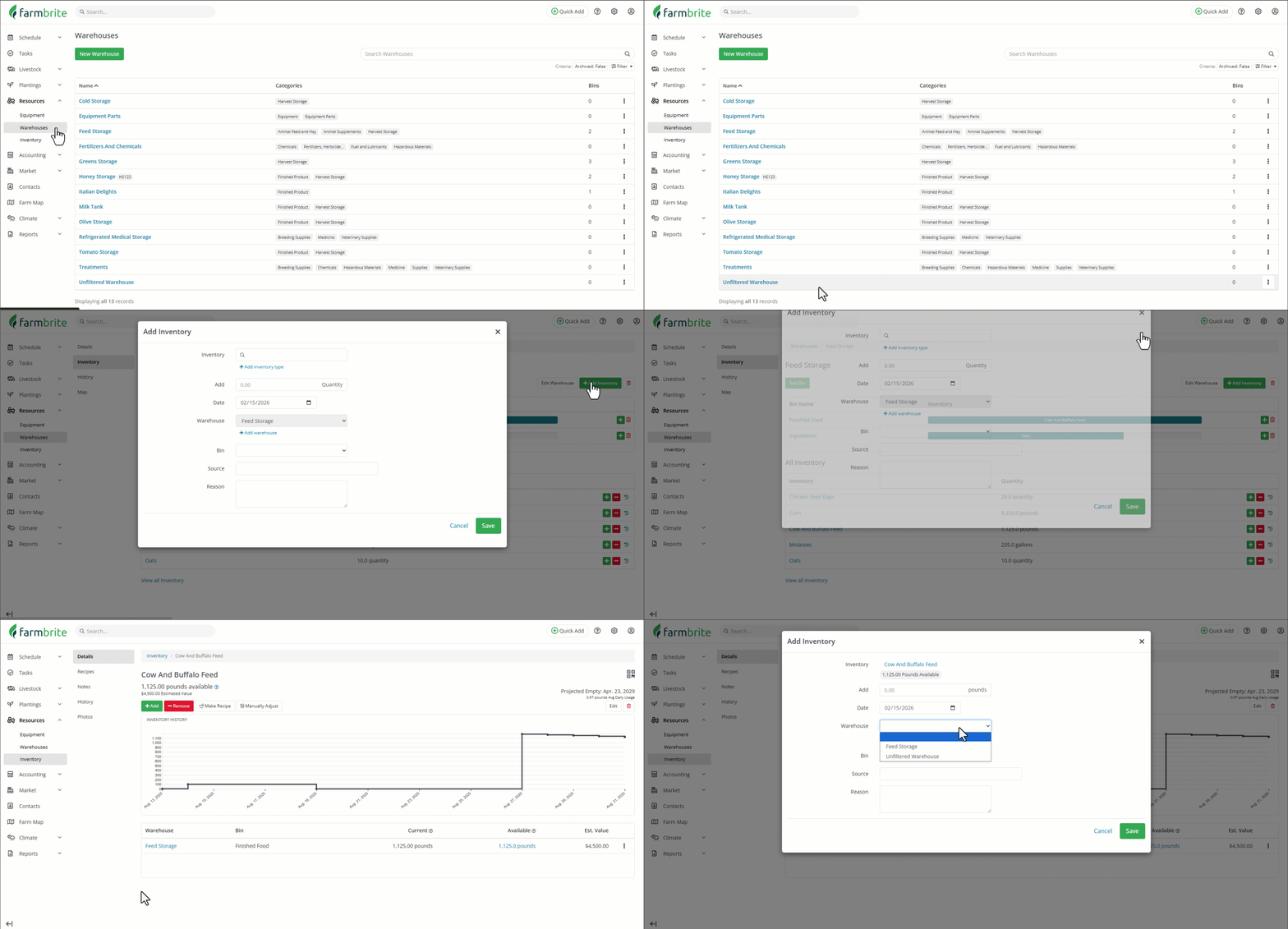
- The category limits the features this item can be used in, such as feedings, breeding records, treatments, and equipment service. That way you won't have to see all of your animal yield items when creating an equipment service record, or all of your mechanical parts and shop supplies when feeding your animals.
The following categories are applicable to each feature:
Breeding Records - Breeding Supplies, Medicine, Veterinary Supplies, Supplies, Miscellaneous.
- Feeding Records - Animal Feed and Hay, Animal Supplements, Supplies, Miscellaneous.
- Equipment Maintenance -Equipment, Equipment Parts, Chemicals, Fuel and Lubricants, Hazardous Materials, Supplies, Miscellaneous.
- Treatment - Animal Supplements, Breeding Supplies, Chemicals, Equipment, Fertilizers, Herbicides, and Pesticides, Hazardous Materials, Medicine, Seeds,Veterinary Supplies, Supplies, Miscellaneous.
Be aware that any item that is uncategorized can be used in any of these actions. Items categorized as Supplies and Miscellaneous are wide ranging categories that can be used in any of the features as well. Additionally, Livestock Inputs and Yields, and Crop Harvests, can be associated with any item in any category.
Beyond that, the category "Other" can be used for items that should not be shown in the inventory selection when performing any of the actions above. Maybe you have merchandise or other supplies like Farmer's Market swag and don't want them to needlessly be shown in the menu when they won't be used on your animals nor crops.
In our example below, note how the feed items are now displayed under the feeding, and medical and veterinary items are displayed under the Treatment.
