The end of the year can be a challenging time for accounting and financials, but Farmbrite is here to help you easily run your annual reports. You might be busy recording some transactions you missed throughout the busy fall harvest season, or contemplating plans and budget goals for next year. The calendar change is a split that you need to account for, generally so that your tax calculations and year end profit calculations are correctly sorted. While the date of the transaction is certainly important, Farmbrite realizes that you may need to adjust which year the transaction is counted toward regardless of the date it occurred. For example, bulk feed you purchased at a discount in December might be specifically allocated to feed animals that are expected to arrive on site early next year. Or, maybe you've received prepayment income from customers at the end of the year that really should be associated with an order that will be placed next year. There are many uses for this, but overall, Farmbrite can assign a transaction to a specific reporting year, and show the income or expense when running that years annual reports.
Note: Farmbrite is available globally, and accounting rules and regulations vary by country. We encourage you to explore your own needs and consult an accounting professional if you have questions about proper accounting and tax filings.
To get started with this, simply navigate to Accounting to create or update a transaction. You'll see a dropdown menu for Reporting Year on both expense and income transactions. Just select the year you want to assign the transaction to, and Farmbrite will classify it there. Of course, the default is the same year as the transaction date, so you won't need to make any changes to this unless you specifically want to allocate it differently.
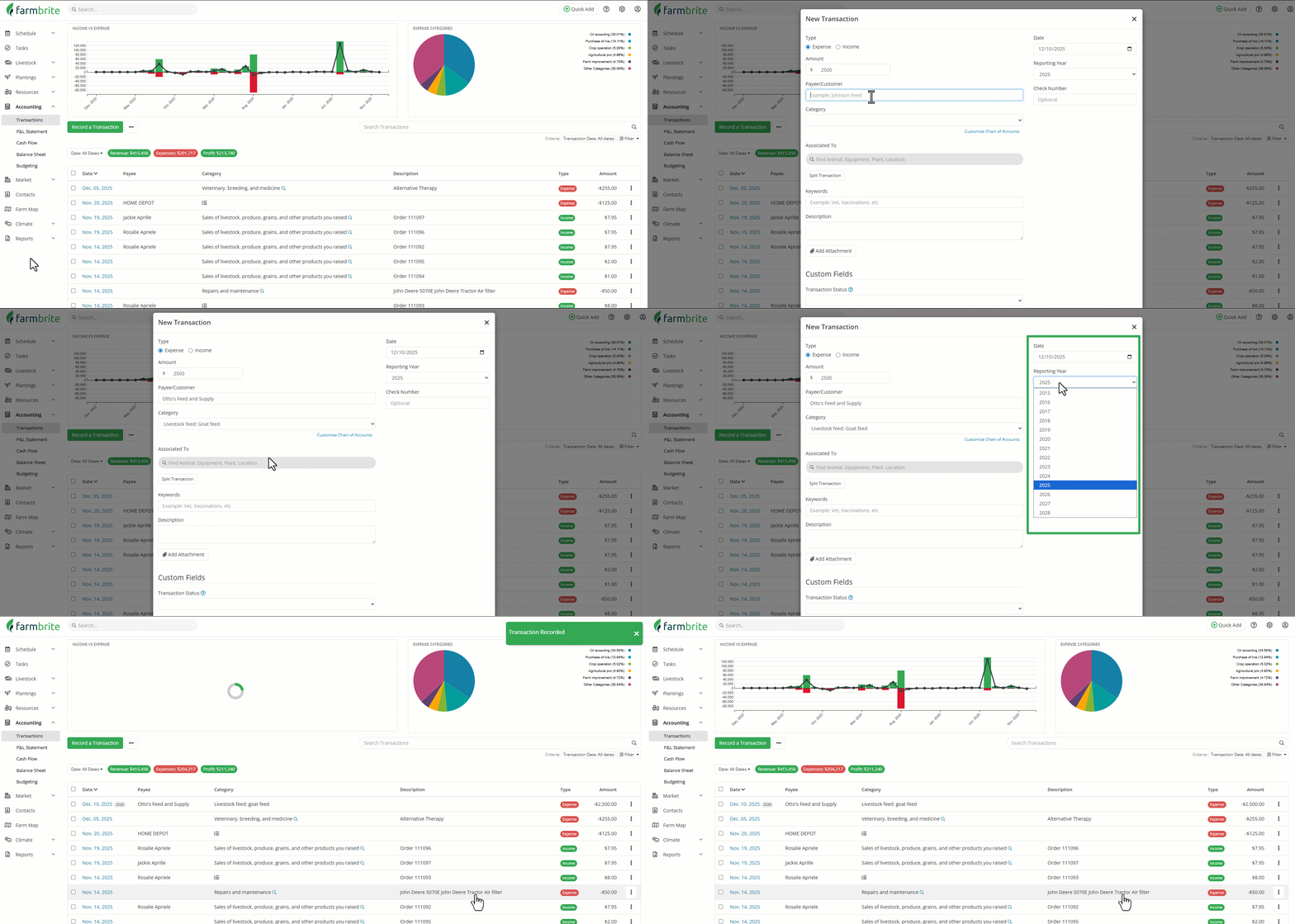
In the basic example above, we have created an expense dated December 10th, 2025, but tagged it as reporting year 2026 to move that expense to that years annual reporting.
Reporting Year Impact
Assigning a unique reporting year to a transaction indicates that you want the expense or income to be reflected in the annual reporting for that year. It is important to understand that you are not assigning it to a specific date in that year, but rather to the year itself. There are multiple places this will be reflected.
- On the main Accounting Dashboard - You'll see your transactions tagged with the reporting year so you can easily see this important information. You'll also have a filter for Reporting Years that can be used to only display transactions tagged for a specific year as well. You can use any combination of filters to find the specific transactions you are looking for.
- When running Financial Reports -The transactions that you tag as a specific reporting year will be displayed within that year for your Profit and Loss Statement and Tax Summary Reports. The reverse is true as well; a transaction tagged with a different year will not be displayed on reports based on it's transaction date. Since the transaction is outside of the calendar date range for the reports, it will only be included when running the report that starts the 1st of the year. Using January 1st as your start date indicates to report that the previous year's transactions that are tagged with this reporting year should be included in the report.
Continuing with our example from above, that December 10th dated transaction will show up when running the reports starting 1/1/2026, but not be included in any future date range within that year. The transaction is associated with the year/start of year, and not a specific range within the year.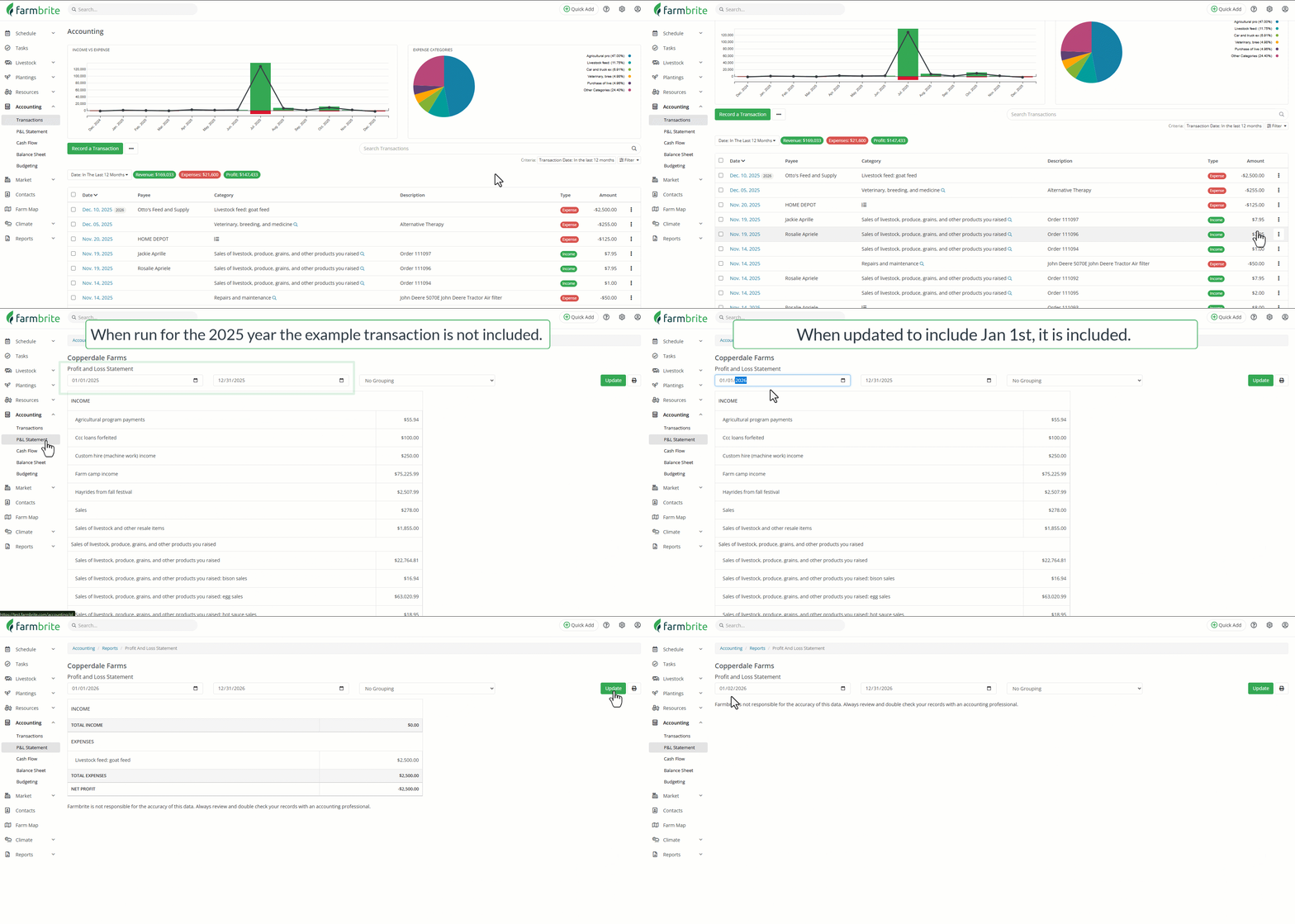
- In situations where you'd like to include a date range that spans multiple years, you'll have two choices.
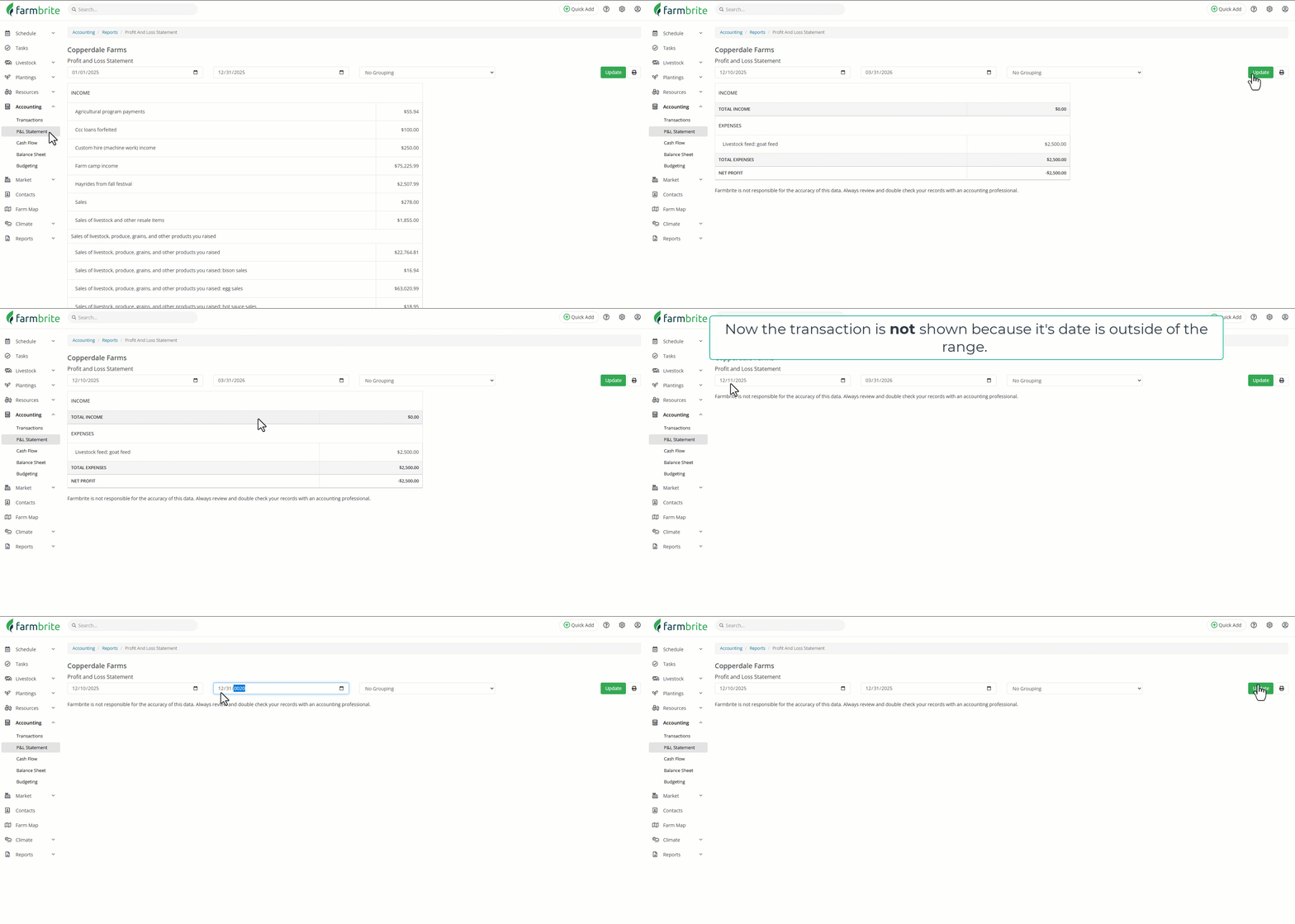
- You can supply a year-spanning date range on the report and you'll see totals for that period. The transactions displayed will be based on the transaction date, and the reporting year will still be taken into account based. In our example, the December 10th transaction would be included in our results as long as the starting date is on or before December 10th, and the ending date is sometime in 2026 to match our reporting year.
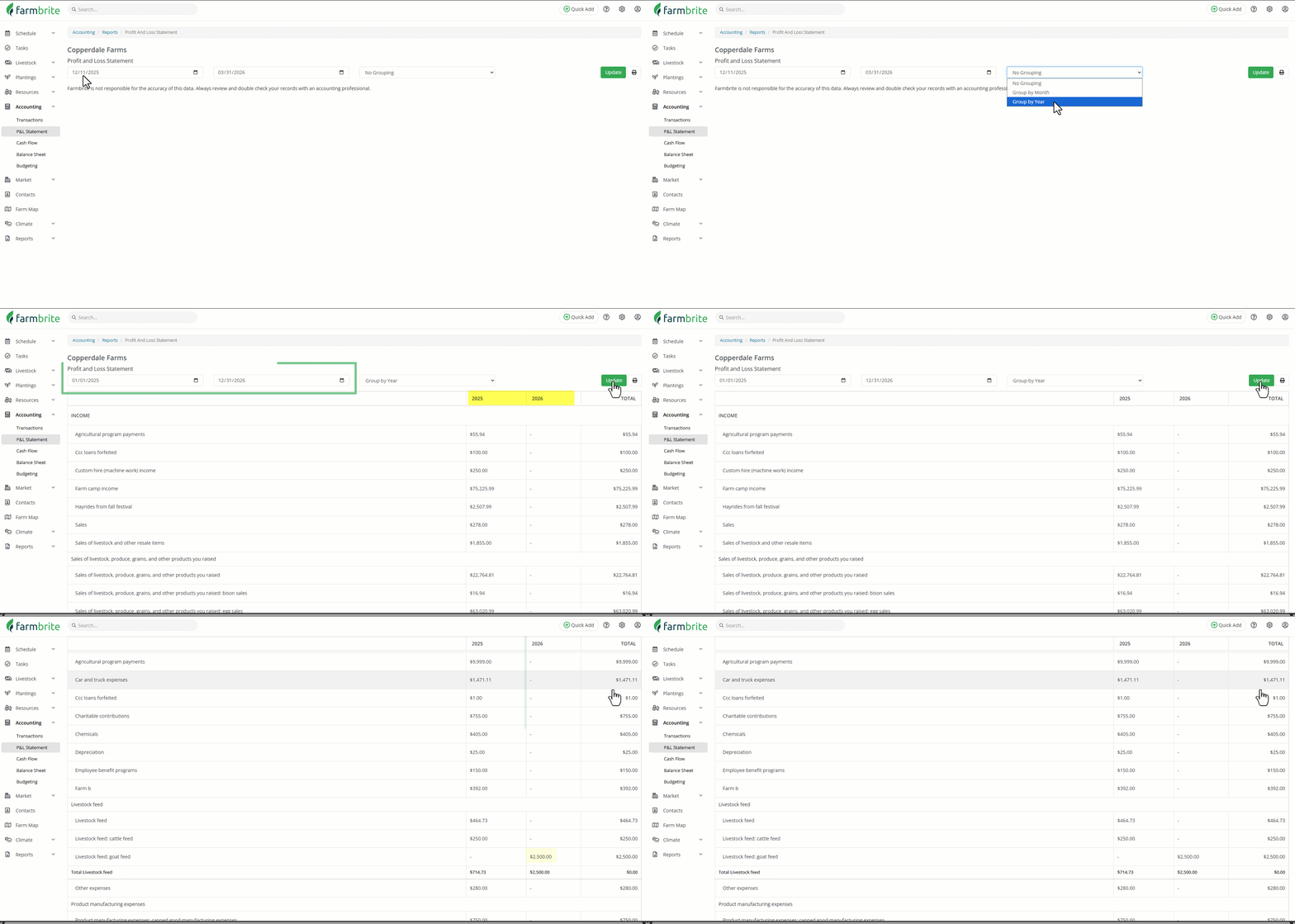
- Alternatively, you can select to group the report by year to automatically see a full multi-year Profit and Loss Statement for all years that are within your date range. This feature is intended for annual reports, and can help you compare year to year data. Regardless of the date range you provide, the report will run from January 1st of your starting year to December 31st of your ending year.
- You can supply a year-spanning date range on the report and you'll see totals for that period. The transactions displayed will be based on the transaction date, and the reporting year will still be taken into account based. In our example, the December 10th transaction would be included in our results as long as the starting date is on or before December 10th, and the ending date is sometime in 2026 to match our reporting year.
