Keeping track of the property and goods you have in stock at your farm or ranch is extremely important; it pays to know where things are, and how many of each item you have on site. You'll likely need to track a variety of things - grain, hay, vegetables or herbs you've grown, seeds, fertilizer, medicine for your livestock, and much more. Farmbrite's inventory system is customizable and adaptable to account for nearly anything you'd like to keep track of. Inventory works hand in hand with your warehouses and bins. You'll want to set those up first before you start adding inventory items, as they need to a place to be stored.
Note that the number of inventory items you can create is limited by your subscription level; if you need to create more items you can always upgrade to the next level. While the Premium plan is unlimited, we have a "soft limit" of 5,000 items in place - if you need more than that, let us know!
Creating Inventory Items
To start creating your inventory, choose Resources from the left menu, and then select Inventory. From the Inventory homepage, click the New Inventory Type button.
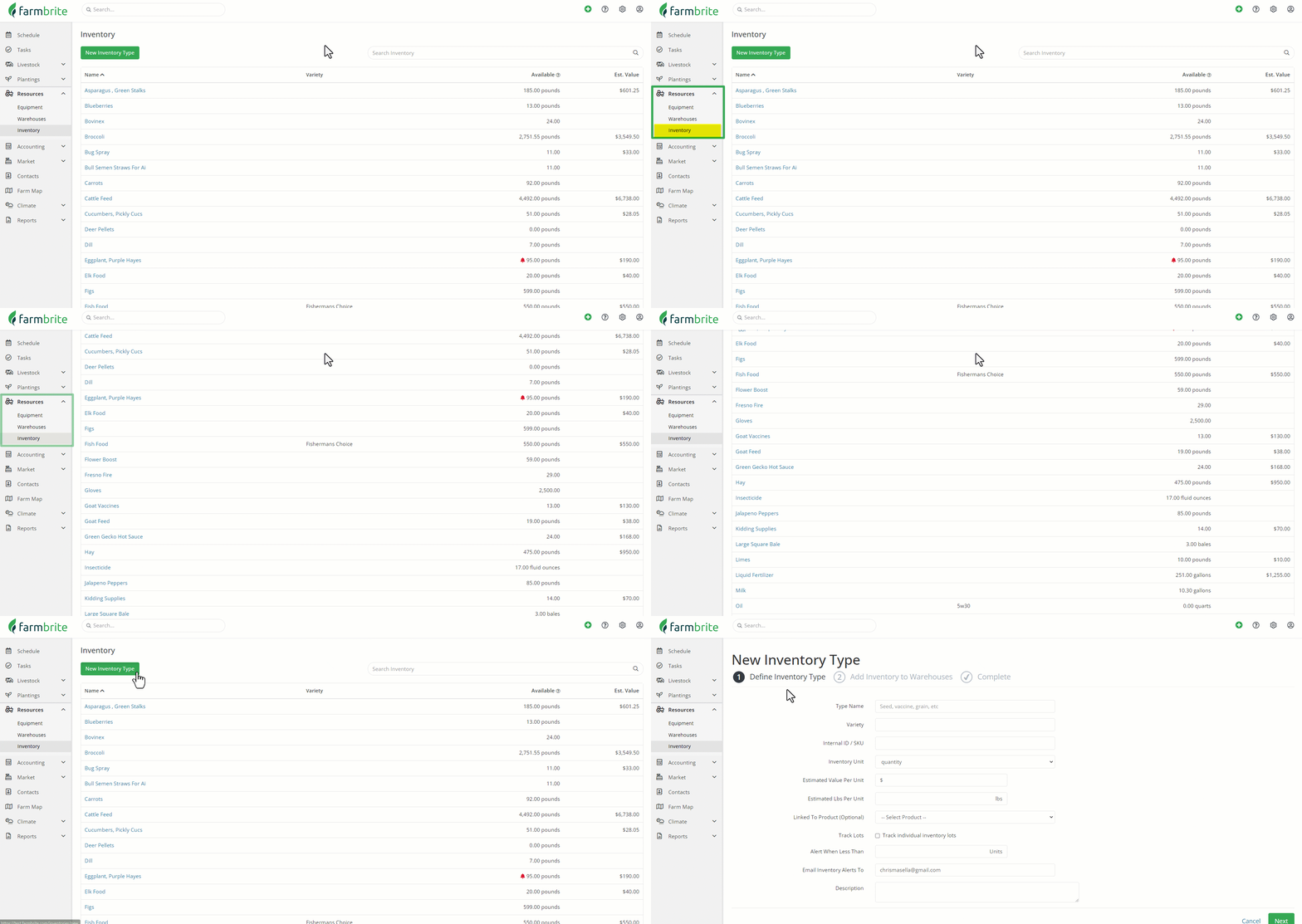
The next page will guide you through 2 steps - providing information about the type of item you want to track, and assigning it a storage location in a warehouse or bin.
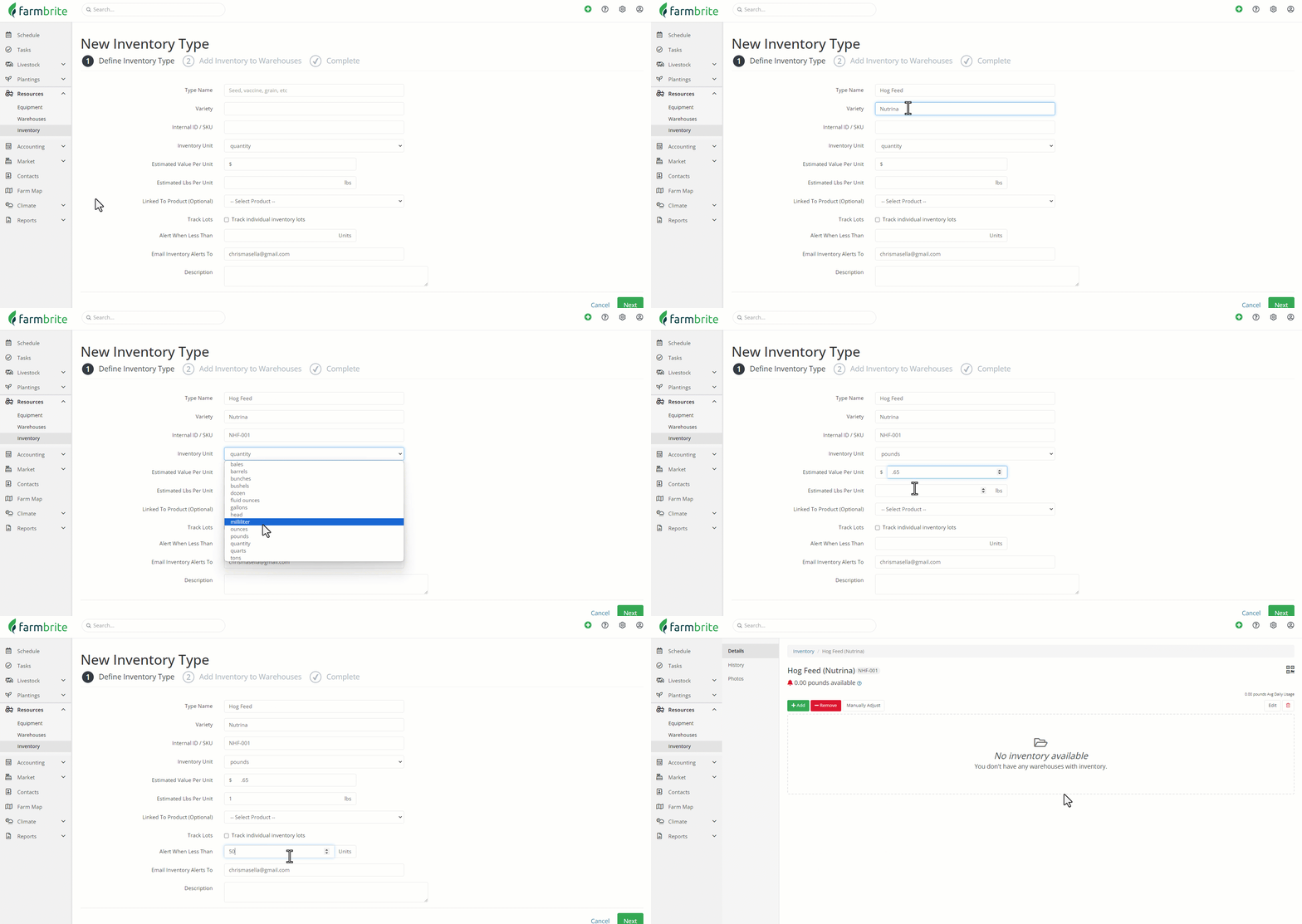
You'll be able to track many details about this item type.
Type Name - What type of inventory are you tracking? In our example in the screenshot below, we've used Grade A Eggs. Think of this as the top level classification for the item.
Variety - Is there a secondary classification for this item type? For our eggs example, our variety is Brown.
Inventory Category - Choose what type of item this is. This selection works with warehouse filtering and item usage to limit selections. For example, you might select a category like "Medicine" to limit this item to medical storage warehouses and usage in treatments.
Internal ID/SKU - Use this for a shorthand reference for this item, or a barcode SKU.
Electronic ID - You can supply a barcode or RFID sequence here to use this item with Farmbrite's bluetooth scanning feature.
Inventory Unit - How do you measure the amount of this item? Maybe pounds of produce, gallons of a liquid, or bales of hay.
- Estimated Value per Unit - Based on the unit you choose above, you can define how much each unit is worth. This is used on your Balance Sheet for inventory asset value.
- Estimated Lbs/Kilos per Unit - If you are tracking the item in Quantity, you can define how many pounds/kilos are in the unit. A good example of this might be bags of feed; you might want to know how many bags you have, but also need to know how much weight they total. For example, if you have ten 50lb bags, you'll see 500lbs shown as well. This can also be used in conversions when feeding pounds/kilos to your animals. but storing your inventory in bags.
Link to Product - If you're tracking the inventory of a product that you sell in your Farmbrite Market, you can associate this inventory type to the product to keep track of the quantity you have in stock. Check out this article for more information.
Track Lots - Select this checkbox if you'd like to track Lot Numbers for this item.
- Expires After - How many days does it take for this product Lot to expire?
Alert When Less Than/Email Alerts To - If you'd like to receive an email notification when you're running low on this item, provide a quantity threshold that would trigger that alert, and an email address the alert should be sent to.
Description - Add any internal description you want associated with this inventory type.
After supplying this basic information and configuration, you can click Next to save the item.
Adding Inventory Quantity to an Item
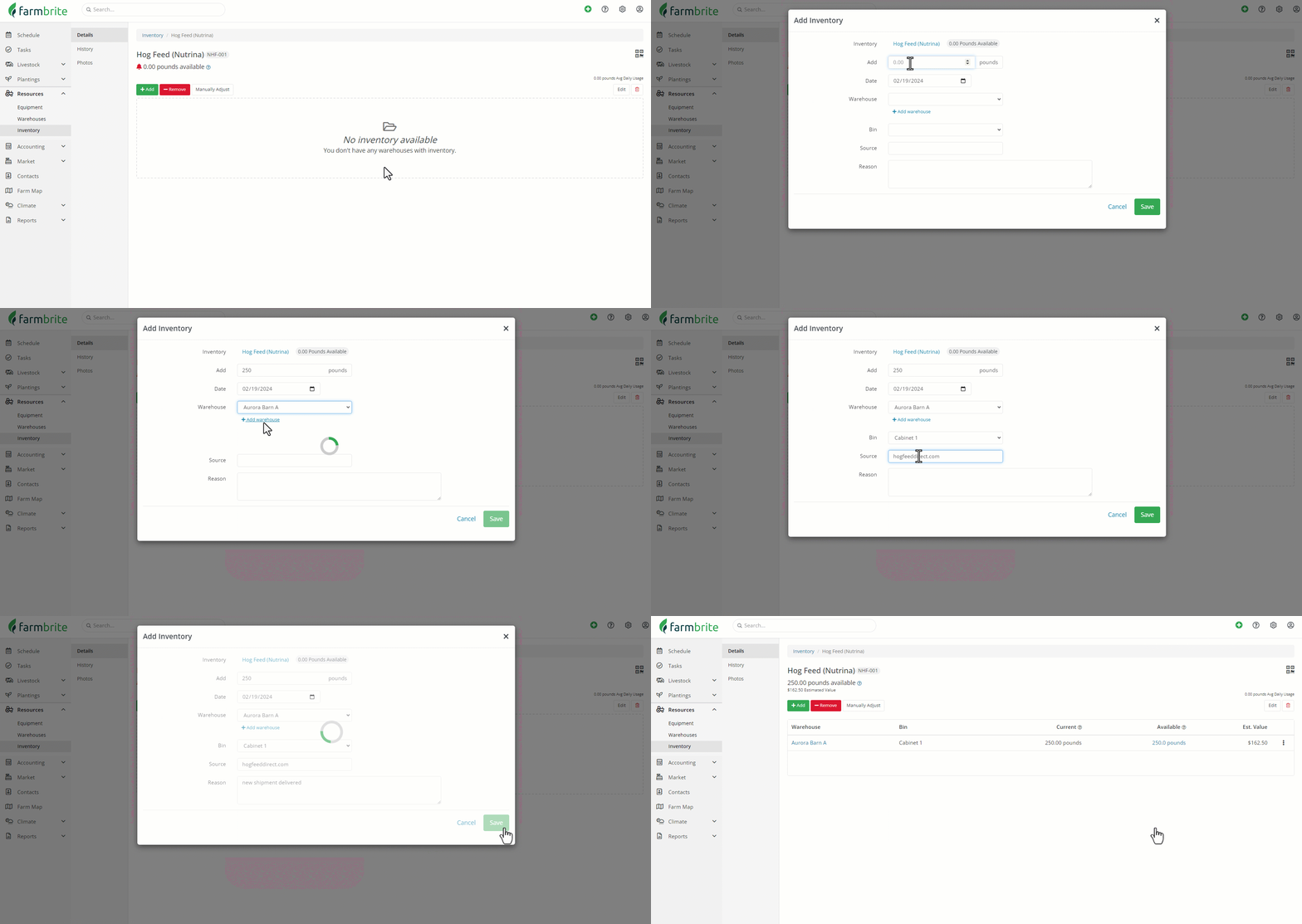
You'll be brought to the next page, which allows you to optionally add a quantity of this item to a storage location. You don't have to do this right now, you can continue adding additional items if you'd like. If you'd like to add a quantity of this item, click the Add button.
The inventory type will be automatically selected for you, so you'll first enter the quantity you'd like to add, and what date to add it. If you associated this inventory type with a product, you can then choose whether or not to update the product inventory with this inventory addition as well. You'll likely choose to update it, but if the inventory you are adding should not be for sale or is already sold, then maybe not.
Next, choose where this item will be stored - you can pick a warehouse, and then a bin if you have one set up. This helps you easily track and find this item when you need it. You can find more information on creating warehouses and bins in this article. Note that the options presented are dependent on your warehouse filters.
You can then associate this item with a lot if applicable, and supply a source. Leaving the lot blank will automatically assign this inventory to a new lot, or you can supply an existing lot number to add to it. Finally, click Add Inventory on that window to add that quantity of this item to that storage location. You'll see your Inventory added to this item on the next page.
Other Ways to Add Quantity
There are multiple ways for you to add inventory quantity. You can use the method above if you are already on the item record, but you do have other options if you prefer.
- As you harvest from a crop or animal - You can select what item you need and where to store it when you create the harvest.
- Through QuickAdd - Using the green plus icon in the app lets you add or remove from any item and location.
- Directly from the warehouse itself - You can add (and remove) item quantity directly from it's storage location.